
If your website is not loading, work through the steps below in order. Most issues can be identified and resolved quickly, the most common cause on our platform is an IP block by the server firewall, and you can check and fix that yourself in seconds using our Firewall Manager.
Step 1: Check whether it is down for everyone or just you
Before troubleshooting your hosting, first confirm whether the problem is on your end or affecting everyone.
Visit downforeveryoneorjustme.com and enter your domain name. If it reports the site is up for everyone else but not for you, the issue is local, most likely a firewall block on your IP. Go straight to Step 2. If it confirms the site is down for everyone, skip to Step 3.
Step 2: Check if your IP address is blocked (most common cause)
Our shared and reseller web servers use two firewalls, CSF (ConfigServer Security & Firewall) and CPGuard, which automatically block IP addresses that trigger security rules. This is the most common reason a site appears down for one person but not others.
Common actions that trigger a block:
- Entering incorrect cPanel or webmail login details too many times
- An email client (Outlook, iOS Mail, Thunderbird) configured with incorrect login credentials or SMTP settings attempting to connect repeatedly
- FTP connections with incorrect details or an unusually high number of concurrent connections
- Security scanning tools or aggressive crawlers originating from your IP
How to check and unblock your IP using the Firewall Manager
You can check whether your IP is blocked and unblock it immediately, without raising a support ticket, using our Firewall Manager in the Client Portal.
- Log in to the Host Media Client Portal.
- In the left-hand menu, click the Websites & Security dropdown and select Firewall Manager.
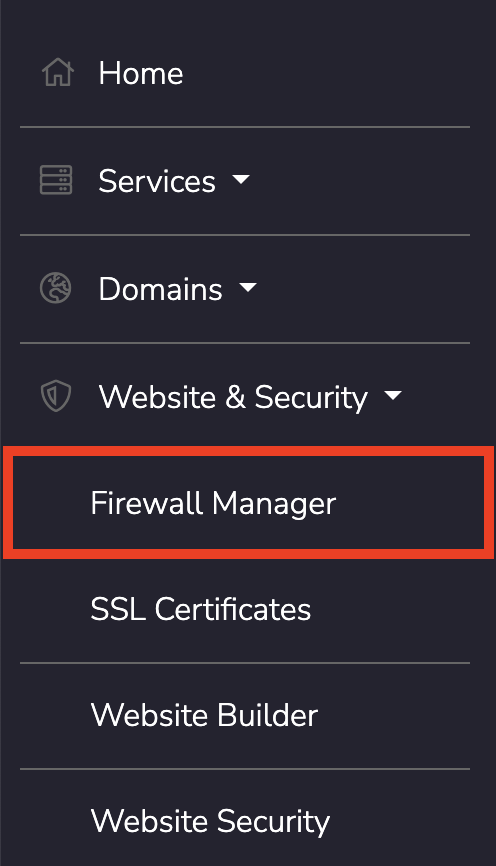
- You will see a list of your hosting services grouped by server. Each server shows your current IP address and an option to check and unblock it immediately.
- Click Check & Unblock next to the relevant server. If your IP is found in the firewall block list, it will be removed and access restored within a few seconds.
Direct link: https://portal.hostmedia.uk/index.php?m=firewallunblocker
Once unblocked, refresh your website in the browser. If it loads, the firewall was the cause. To prevent it happening again, correct whichever login credentials triggered the block, most commonly an email client with an outdated or incorrect password.
Step 3: Check for an account suspension
If the site is down for everyone, log in to the Host Media Client Area and check:
- Are there any overdue invoices? An unpaid account can result in temporary suspension of hosting services.
- Are there any notices or alerts shown on your account dashboard?
If your account has been suspended, settling any outstanding invoice or contacting our support team will restore access promptly.
Step 4: Check your DNS settings
If you have recently moved your domain to a new registrar, changed nameservers, or updated your A records, DNS changes can take up to 24–48 hours to propagate worldwide. During this time some visitors may still be reaching the old server.
Check your DNS propagation status at dnschecker.org, enter your domain and select the A record type to see which IP address is resolving globally. If you see a mix of old and new IP addresses, propagation is still in progress.
Step 5: Check your cPanel error logs
If your site is reachable but returning an error (500, 503, blank page, or database error), the cPanel error log will usually tell you exactly what is wrong:
- Log in to cPanel.
- Under the Metrics section, click Errors.
- Review the most recent entries, the log shows the last 300 error lines for your account.
Common errors and their likely causes:
| Error | Likely cause |
|---|---|
| 500 Internal Server Error | PHP error, a bad rule in your .htaccess file, or incorrect file permissions |
| 503 Service Unavailable | Server resource limit reached, see our resource limit guide |
| 403 Forbidden | Incorrect file permissions, or an .htaccess rule blocking access |
| Error establishing database connection | Incorrect database credentials in your CMS configuration file |
Step 6: WordPress-specific checks
If your site runs WordPress and is showing a white screen or "there has been a critical error", try the following:
- Deactivate all plugins: Connect via FTP or cPanel File Manager and rename
/wp-content/plugins/to/wp-content/plugins-disabled/. If the site loads, a plugin is the cause. Rename the folder back and reactivate plugins one by one to find which one is responsible. - Enable WP_DEBUG: Add
define('WP_DEBUG', true);to yourwp-config.phpfile to display the actual PHP error on screen rather than a blank page. - Increase memory limit: Add
define('WP_MEMORY_LIMIT', '256M');towp-config.phpif you suspect a memory exhaustion issue.
Still down? Contact support
If you have worked through all the above steps and cannot identify the cause, open a support ticket and include:
- Your domain name
- What you see when you visit the site (error message, blank page, timeout etc.)
- When the problem started
- Your current IP address (from whatismyipaddress.com)
- Any recent changes made to the site
The more detail you can provide, the faster we can diagnose and resolve the issue.