
To keep your Host Media client area account as secure as possible, we require Two-Factor Authentication (2FA) on all client area logins. This guide explains what 2FA is, which app to choose, and how to get set up in a couple of minutes.
What Two-Factor Authentication Does
A password on its own is a single point of failure. If it is reused on another site that suffers a breach, guessed, or captured by a phishing page, whoever has it can sign in as you.
2FA adds a second, separate check at login. After entering your password you provide a short code from an app on a device you own, or you touch a hardware key. An attacker with your password still cannot get in, because they do not have the device.
This applies to the client area login only. Enabling 2FA here protects portal.hostmedia.uk, where you manage domains, billing, and support tickets. Your hosting control panel (cPanel, DirectAdmin, or Cloud Control Panel), your webmail, and your FTP and email accounts are not affected and will continue to work exactly as they do now. Those systems have their own separate 2FA settings. We would encourage you to turn those on too, but they are configured inside each control panel rather than here.
Your Three Options
We support two methods. You only need one. You can switch between them later at any time.
Option 1: Time Based Tokens (TOTP) Recommended
An authenticator app generates a fresh six-digit code every 30 seconds. At login you enter the current code alongside your password. The app works entirely offline once set up, so no internet connection or mobile signal is needed to produce a code.
Suits: most customers. Free, quick to set up, and there is a suitable app for every phone, computer, and browser.
Option 2: Yubico (YubiKey)
A YubiKey is a small hardware key that plugs into a USB port or taps via NFC. At login you touch the gold contact and the key supplies the code itself. Nothing to type, no phone required, no battery to charge.
We currently only support Yubico OTP based keys such as the YubiKey 5 series
Suits: anyone who prefers hardware-based security or would rather not depend on a phone. Available from yubico.com as a one-off purchase.
Option 3: Email Code
An email will be sent to your registered account with a 6 digit code to enter at login, this is the easiest way to get 2FA enabled as no apps or hardware is needed. Email, just like SMS is classed as less secure as other options as it is only as secure as your email accounts password.
Suits: most customers. Free, quick to set up, but not as secure as a TOTP or a Yubico key.
Choosing an Authenticator App
If you go with Time Based Tokens you will need an app to hold the codes. Any app that supports standard TOTP will work. The options below are grouped by where you want your codes to live.
On your phone
- Google Authenticator, iOS | Android
Free and straightforward. The most widely used option, with no account needed and no extras. Codes can be synced to a Google account if you want them restored to a new phone. - Microsoft Authenticator, iOS | Android
Free, with cloud backup so your codes can be restored to a new phone. A sensible choice if you already use it for a work Microsoft 365 account. Phone only, there is no desktop version. - Aegis Authenticator, Android
Free and open source, with an encrypted local vault and straightforward export so you are never locked in. Android only.
On your computer (Windows, Mac and Linux)
Worth considering if you mostly log in from a desktop and would rather not reach for your phone each time.
- Proton Authenticator, Windows / Mac / Linux / iOS / Android
Free and open source, and the most complete desktop option currently available. Offers end-to-end encrypted sync between devices, and works without creating a Proton account. Neither Google nor Microsoft publish a desktop authenticator, so this is one of the few genuine ways to keep codes on the machine you are logging in from. - Ente Auth, Windows / Mac / Linux / iOS / Android / Web
Free and open source, with end-to-end encrypted backups and sync across devices. The code and cryptography have been independently audited. A close functional match for the old Authy desktop app. - KeePassXC, Windows / Mac / Linux
Free, open source and entirely offline. Your database is a local encrypted file with no cloud account involved, which suits anyone who would rather not sync codes anywhere. You are responsible for your own backups of that file. - Gnome Authenticator, Linux
Free, simple, lightweight application for generating Two-Factor Authentication Codes for Linux operating systems.
In your browser
- 2FAS, Chrome / Edge / Firefox / Safari extension with iOS / Android app
Free and open source. The extension pairs with the phone app, so you click the extension icon, confirm on your phone, and the code is filled in for you without any typing. - Apple Passwords, iPhone / iPad / Mac plus Chrome, Edge and Firefox on Windows
Free, and already installed if you use Apple devices. The Passwords app handles passwords, passkeys and verification codes together from iOS 18 and macOS Sequoia onwards. On a Windows PC, installing iCloud for Windows plus the browser extension lets you scan the setup QR code and receive codes on the PC itself.
If you already use a password manager
- 1Password, iOS / Android / Windows / Mac / Linux / Browser
A paid password manager, from around £3 per month billed annually, with built-in TOTP support. Convenient if you want passwords and codes managed in one place, as it fills both for you at login. - Bitwarden, iOS / Android / Windows / Mac / Linux / Browser
A free, open-source password manager. The vault itself is free with unlimited devices, but the built-in authenticator is a Premium feature at roughly £15 per year. If you only want the codes, Bitwarden also publish a separate free Bitwarden Authenticator app.
A note on keeping both factors in one place. Storing your password and your 2FA code in the same vault is convenient, and for most accounts it is a perfectly reasonable trade-off. It does mean that one compromised master password gives up both factors at once. For your client area account, where domain transfers and billing live, we would suggest a separate authenticator app or a hardware key.
Hardware-backed codes
- Yubico Authenticator, Windows / Mac / Linux / iOS / Android
Free, but requires a YubiKey. Stores the code secrets in the secure element of the key rather than on your phone or computer, so codes only appear when the key is present. Because the secrets live on the key rather than the device, replacing a phone or laptop does not lock you out. Note that this is the Time Based Tokens method using a YubiKey to hold the codes. If you own a YubiKey you may prefer Option 2 above, which uses the key directly and needs no app at all.
If you currently use Authy. Earlier versions of this guide recommended Authy, including its desktop app. Twilio discontinued the Windows, Mac and Linux versions in March 2024 and Authy is now mobile only. Authy also has no export function, so moving your codes elsewhere means disabling and re-enabling 2FA on each service individually. If you rely on Authy on a computer, we would suggest moving to Proton Authenticator or Ente Auth. To move your Host Media code across, set up your new app first, then follow the steps below to disable and re-enable 2FA on your account.
Where to go first
You can find the Security sessions under your account drop down which can be found in the top right corner of your client portal after logging in.
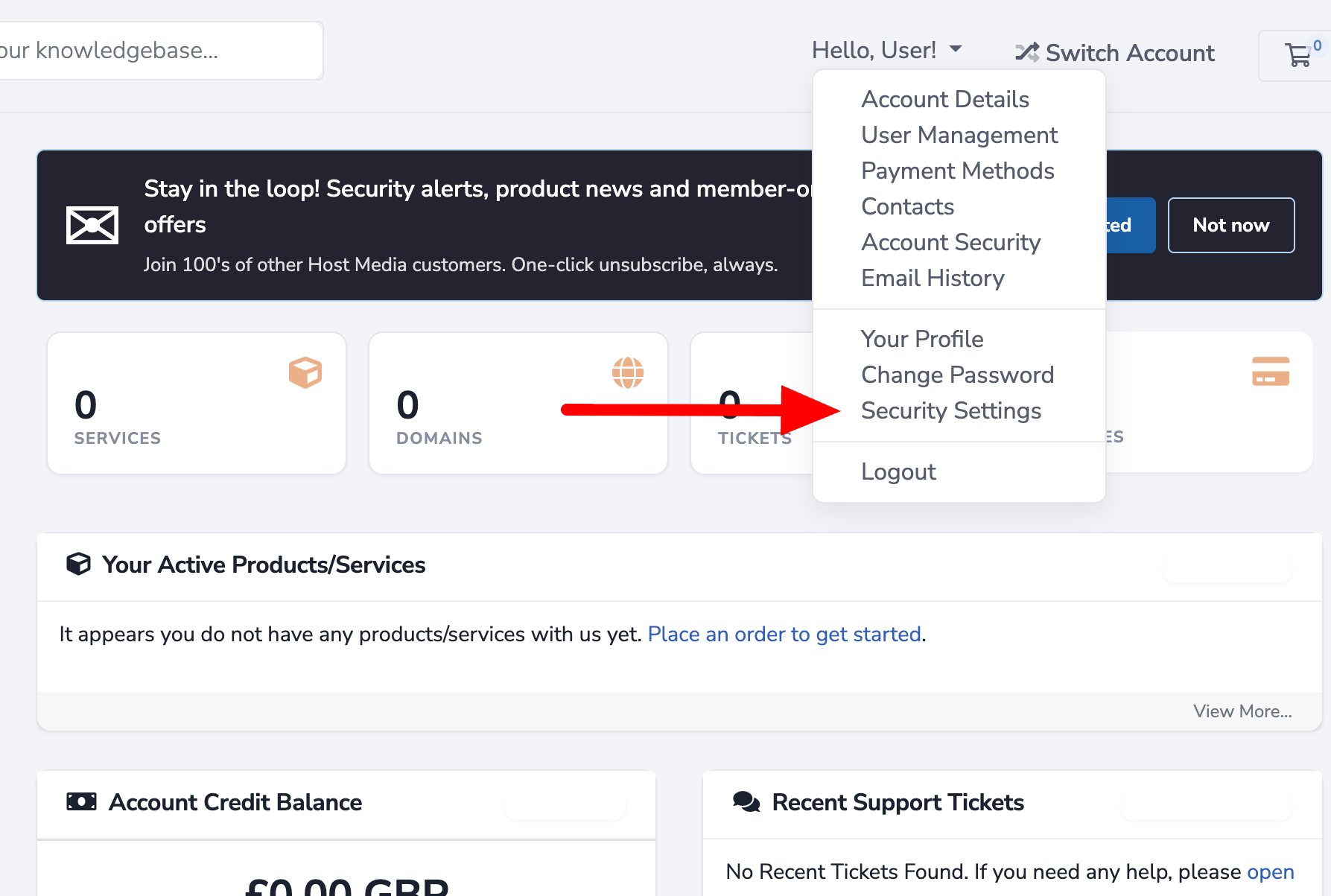
Once you have entered the Security Settings page, scroll down and you will see this panel:
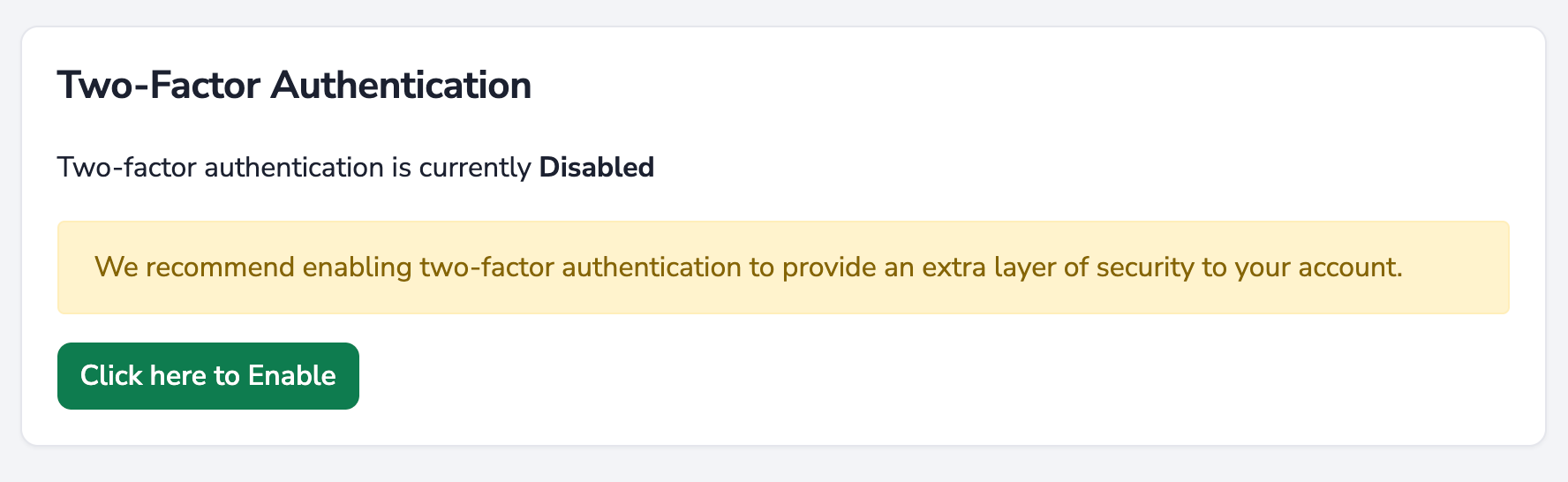
Once you have clicked 'Click here to Enable', you will be presented with the following screen. Most will want to use the Time Based Tokens option.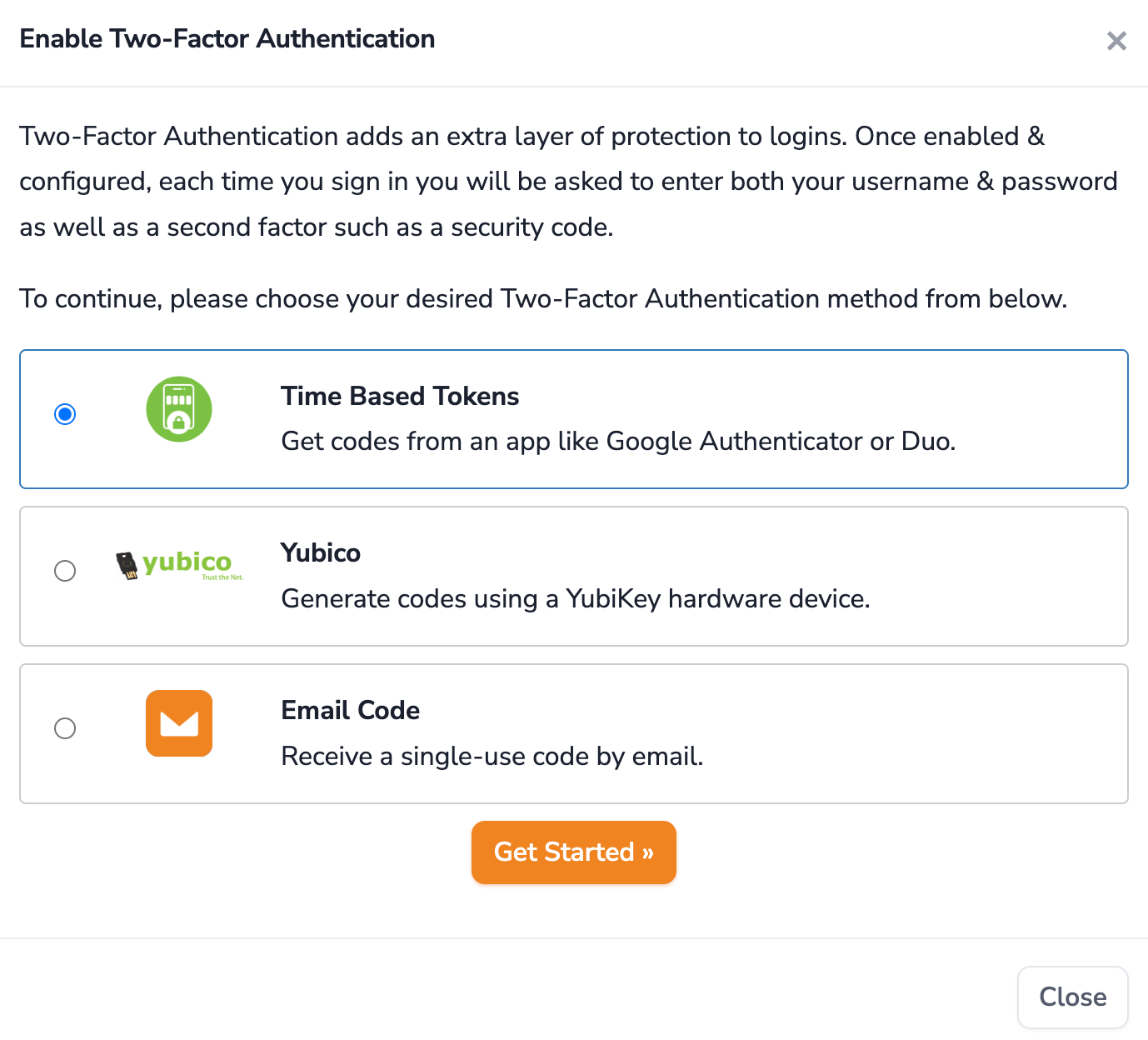
Setting Up Time Based Tokens
- Install your chosen authenticator app using the links above.
- Log in to your Host Media client area.
- Click your name in the top-right corner and choose Security Settings.
- Under Two-Factor Authentication, click Click Here to Enable.
- Select Time Based Tokens and click Get Started.
- A QR code appears on screen. In your authenticator app, look for the option to add a new account, usually a "+" button or "Scan QR code".
- Scan the QR code. If you are using a desktop app, most will let you scan directly from the screen, or you can use the manual setup key shown beneath the QR code instead. If prompted for a name, we suggest Host Media.
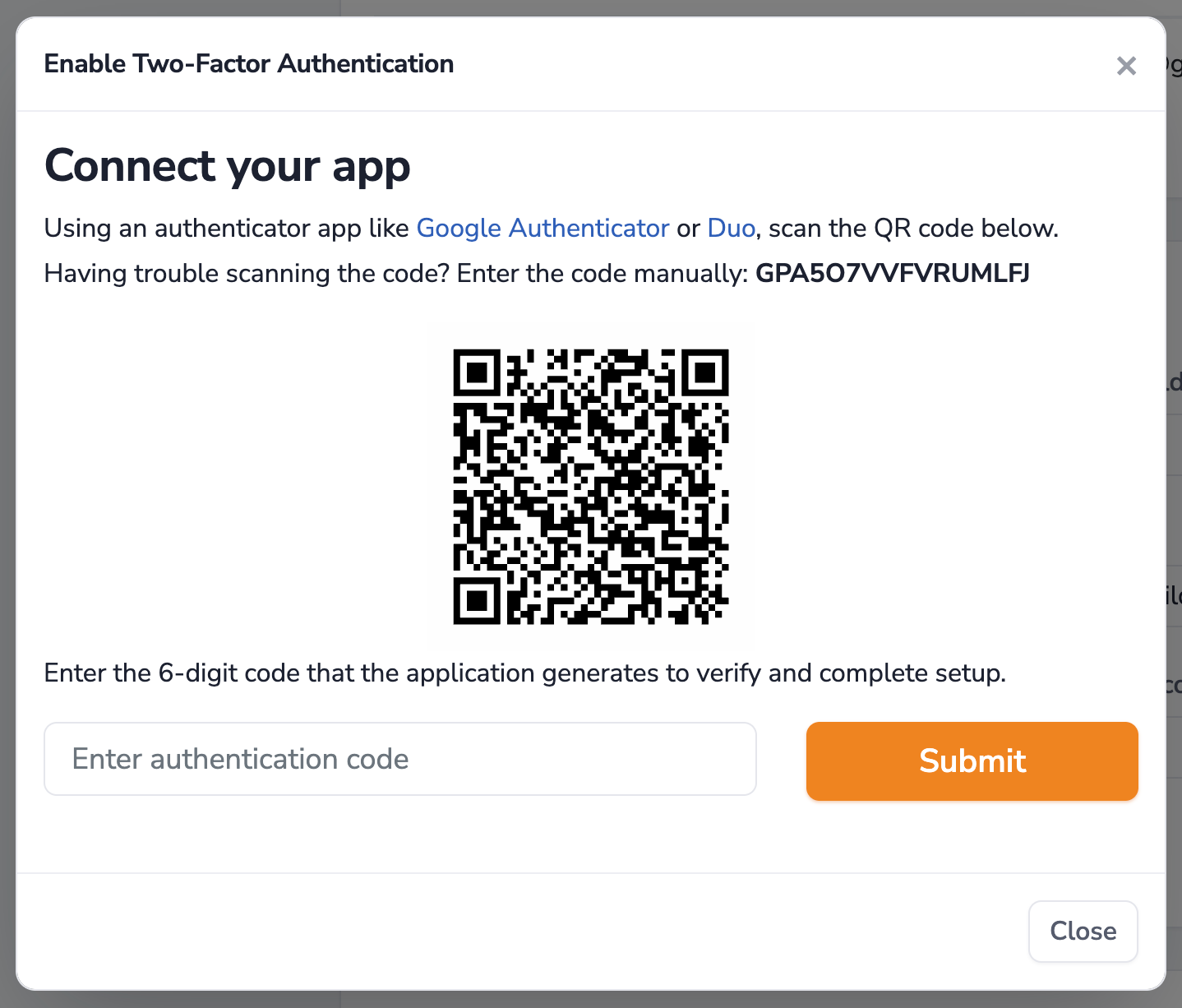
- Your app will now show a six-digit code that refreshes every 30 seconds. Type the current code into the Verification Code field.
- Click Submit. Two-Factor Authentication is now active on your account.
Save your backup code. During setup you will be shown a one-time backup code. This is the only way to get back into your account on your own if you lose access to your authenticator app. Store it somewhere you can reach without the app itself, for example printed and kept securely, or saved in your password manager.
Do not store it only on the same phone that holds your authenticator app. If that phone is lost, so is the code.
Setting Up Yubico
You will need a YubiKey for this method. These are available from yubico.com.
- Insert your YubiKey into a USB port.
- Log in to your Host Media client area.
- Click your name in the top-right corner and choose Security Settings.
- Under Two-Factor Authentication, click Click Here to Enable.
- Select Yubico and click Get Started.
- Click inside the YubiKey OTP field so the cursor is active in it.
- Touch the gold contact on your YubiKey. It will generate and fill in a one-time code automatically.
- Click Save Changes. Two-Factor Authentication is now active on your account.
We would recommend buying a second YubiKey as a spare. Keep it somewhere safe and separate from the one you carry.
Setting Up Email Code
- Log in to your Host Media client area.
- Click your name in the top-right corner and choose Security Settings.
- Under Two-Factor Authentication, click Click Here to Enable.
- Select Email Code and click Get Started.
- Click Send code to my email.
- Open your email inbox, please make sure to check SPAM/Junk folders
- You should receive an email titled 'Your verification code', copy the code within the email.
- Paste the code into the field shown in the client portal.
- Copy your backup code to keep safe.
Once this has been done, your account is now protected by email code based 2FA.
Frequently Asked Questions
Do I need to enter a code every time I log in?
Yes, the second factor is requested at each login. In practice it adds a few seconds once you are used to it, if you are using an app such as 1Password for example, login times are faster than without, as this service will enter your username, password and 2FA with a single click due to its own validation/security systems.
I need to change my phone
Plan this before you wipe or hand back the old handset, as it is the most common cause of lockouts.
- If your app syncs across devices (Proton Authenticator, Ente Auth, Microsoft Authenticator, 1Password, Bitwarden), install it on the new phone and sign in. Your codes will appear.
- If your app does not sync, or you are switching to a different app, log in to the client area on the old phone or a computer, disable 2FA under Security Settings, then re-enable it and scan the new QR code with the new device.
- Confirm the new device produces a working code before disposing of the old one.
What if I get locked out
Use your backup code at the login prompt. If you no longer have it, open a support ticket or email us from the address registered on the account. We will verify your identity and then remove 2FA so you can log back in and set it up again.
Identity verification is deliberately strict, because the whole point of 2FA is that possession of the email address alone is not enough. Expect to be asked for details only the account holder would know. This can take a little time outside office hours, which is why the backup code is worth keeping safe.
I do not have a smartphone. Can I still use 2FA?
Yes. Proton Authenticator, Ente Auth and KeePassXC all run on Windows, Mac and Linux with no phone involved. A YubiKey is also a completely phone-free option.
Does the app need an internet connection?
No. Time-based codes are generated from the clock on your device, so they work offline and without mobile signal. The only requirement is that your device clock is roughly accurate, which it will be if it is set to update automatically.
Can I have the code on more than one device?
Yes. Apps such as Proton Authenticator, Ente Auth, 1Password and Bitwarden sync across devices. With an app that does not sync, you can scan the same QR code into two apps during setup, which gives you a second device as a fallback.
My code is being rejected. What is wrong?
Almost always a clock problem. Check that the date and time on the device running your authenticator app are set to update automatically. Also make sure you are entering the code before it refreshes, as a code that has just rolled over will be rejected.
Does this affect cPanel, DirectAdmin, Cloud Control Panel or my webmail?
No. This requirement covers the client area login only. Your control panel, webmail, FTP and email logins are unchanged. Those platforms have their own 2FA settings, which we would encourage you to enable separately.
I manage sub-accounts or contacts under my main account. Do they need 2FA too?
Yes. Any account that can log in to the client area needs 2FA enabled on it.
I am a reseller. Does this cover my customers?
No. This applies to your own Host Media client area login. Your customers' logins to your own systems are yours to manage.
Is there any cost?
Time Based Tokens are free, using any of the free apps listed above. The Yubico method needs a YubiKey, which is a one-off purchase from around £25.
Can I switch methods later?
Yes. Disable 2FA under Security Settings and set it up again with the other method. Do this while you still have access to your current method.
Can I turn 2FA off?
2FA is required on all client area accounts, so it cannot be left disabled. You can disable it temporarily to switch methods or move to a new device, but you will be prompted to set it up again at your next login.
Need a Hand?
If anything here is unclear or the setup does not behave as described, open a support ticket and we will walk you through it.