
For cPanel and DirectAdmin shared hosting customers moving to Host Media's Cloud Platform
We're moving hosting accounts from our shared hosting platform onto the Host Media Cloud Platform, a modern, more resilient platform that lets us keep investing in performance and reliability. Below is everything you need to know about the move, including a few things that work a little differently on the new platform.
What's actually changing?
Your website, databases and email hosting is moving from our shared hosting (cPanel or DirectAdmin) to the Host Media Cloud Platform, powered by 20i. You'll be given new login details for your account Cloud Control Panel, and your site and mailboxes will be transferred across for you. Your domain, email addresses and website content all carry over, full details of your specific migration date will be sent to you directly.
Will my SitePad website still work after the move?
SitePad, the drag-and-drop builder available on both our cPanel and DirectAdmin hosting, isn't part of the new Cloud Platform, so a SitePad-built site won't carry across automatically. You have three options for getting your site up and running again:
- Install WordPress using the 1-click installer, for a new and more powerful website (Recommended)
- Rebuild it using Weebly (Free & Paid Addon)
- Rebuild it using the Cloud Platform's own Website Builder
If you're not sure whether your site uses SitePad, contact support (see below) and we can check for you before your migration date.
How do I access the Cloud Control Panel
The quickest and easiest way to login to your Cloud Control Panel is to login to your Host Media Client Portal -> Services -> My Services -> Select your hosting -> Click "Open Control Panel"

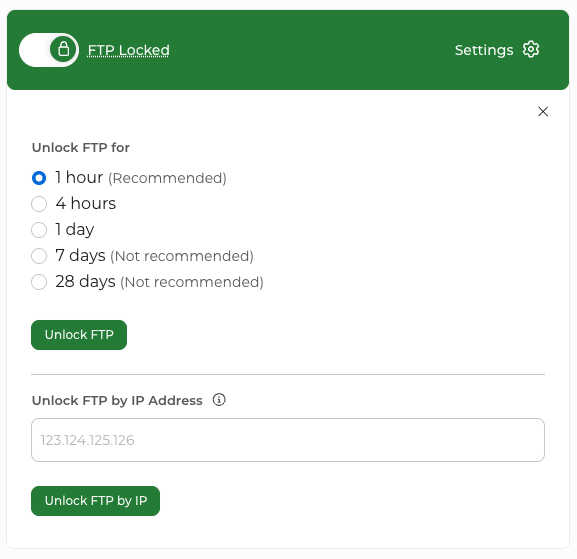
Why do I need to “unlock” FTP before I can connect?
The Cloud Platform locks FTP access by default as a security measure, so it can only be used when you actually need it. This greatly reduces the risk of your account being compromised via stolen FTP credentials. To connect, log into your Cloud Control Panel, view the FTP Details panel on the right hand side, and click unlock FTP and if you like update the period of time you need it unlocked for. You can re-lock it once you're done, or let a time-based unlock expire automatically.
What are the nameservers/DNS I need to update on my domain?
The new Cloud Platform uses a total of 4 globally positioned nameservers for extra redundancy and to lower latency on record lookups. Unlike most of this migration, this step is down to you (or your registrar) to action, as only you can update your domain's nameservers. Below are the nameservers required:
- ns1.hostmedia.cloud
- ns2.hostmedia.cloud
- ns3.hostmedia.cloud
- ns4.hostmedia.cloud
If your domain uses A records instead of nameservers (for example, if your DNS is managed elsewhere, like CloudFlare for example), log into your Cloud Control Panel and find your new IP address in the panel on the right hand side, then update your A record to point to it.
How does the free SSL certificate work?
Every hosting account on the Cloud Platform includes a free SSL certificate so your site runs securely over HTTPS. Once your domain is pointed at your new nameservers, go to Security > SSL/TLS in your Cloud Control Panel, find your domain, and select “Activate Free SSL”. You can also switch on “force HTTPS” so all visitors are automatically redirected to the secure version of your site. It can take up to 30 minutes to fully activate.

I use CloudFlare, what do I need to do?
You'll be given a new IP address as part of your migration, you'll find this in the panel on the right hand side of your Cloud Control Panel. Point your domain to this new IP, log into your Cloud Control Panel and click Activate SSL for any records, then go into your CloudFlare dashboard and set the SSL/TLS mode to Auto. Once that's done, switch on the "force HTTPS" toggle in your Cloud Control Panel (see the free SSL question above) so all visitors are automatically redirected to the secure version of your site.
How do email storage limits work on the new platform?
This is a welcome change: email storage is now separate from your website's disk space. Mailboxes offer up to 10GB of storage, please see your specific hosting plan for full details, regardless of your overall web hosting storage limit. On the old cPanel and DirectAdmin hosting, email storage was drawn from your single overall disk quota, so a large mailbox could squeeze the space your website needed.
How do database storage limits work on the new platform?
Similar to how email storage is handled, each MySQL database comes with a fixed limit of 1GB, which does not draw from your web hosting storage. Most hosting plans come with unlimited databases.
If you need more than 1GB, we're currently finalising a boost addon with a larger 5GB limit plus enhanced CDN and CPU. It's not available to order just yet, if you need higher database limits in the meantime, please contact our sales team and we'll see what we can do.
Will my email account, FTP, database passwords be kept?
Our migration tools do their best to keep all password data, but because the platforms are quite different, FTP and database passwords will be reset as part of the move, and known configuration (such as WordPress websites) will be updated to match automatically. You'll find your new FTP and database passwords within your Cloud Control Panel. For email accounts, we'd recommend logging into your Cloud Control Panel after migrating and resetting your email account password.
How do I access my emails?
You will be able to continue using your email clients such as Outlook or Apple Mail as you have done before, but please make sure to grab the updated details for your SMTP/POP/IMAP details from the Cloud Control Panel.
For online webmail, you can access this directly by using this URL: https://webmail.hostmedia.cloud/
Who do I contact with questions, or for help with my migration?
You can reach our support team directly here: https://portal.hostmedia.uk/submitticket.php?step=2&deptid=1&subject=Cloud%20Hosting%20Questions.
We're here to help before, during and after your move, if anything on this page doesn't answer your question, just get in touch.