Your database contains all the dynamic content of your website, posts, orders, user accounts, settings. Backing it up separately from your files means you can restore just the data quickly, without needing a full account restore. This guide shows two methods: the cPanel Backup tool and phpMyAdmin.
Method 1: cPanel Backup Wizard (easiest)
- Log in to cPanel and scroll to the Files section.
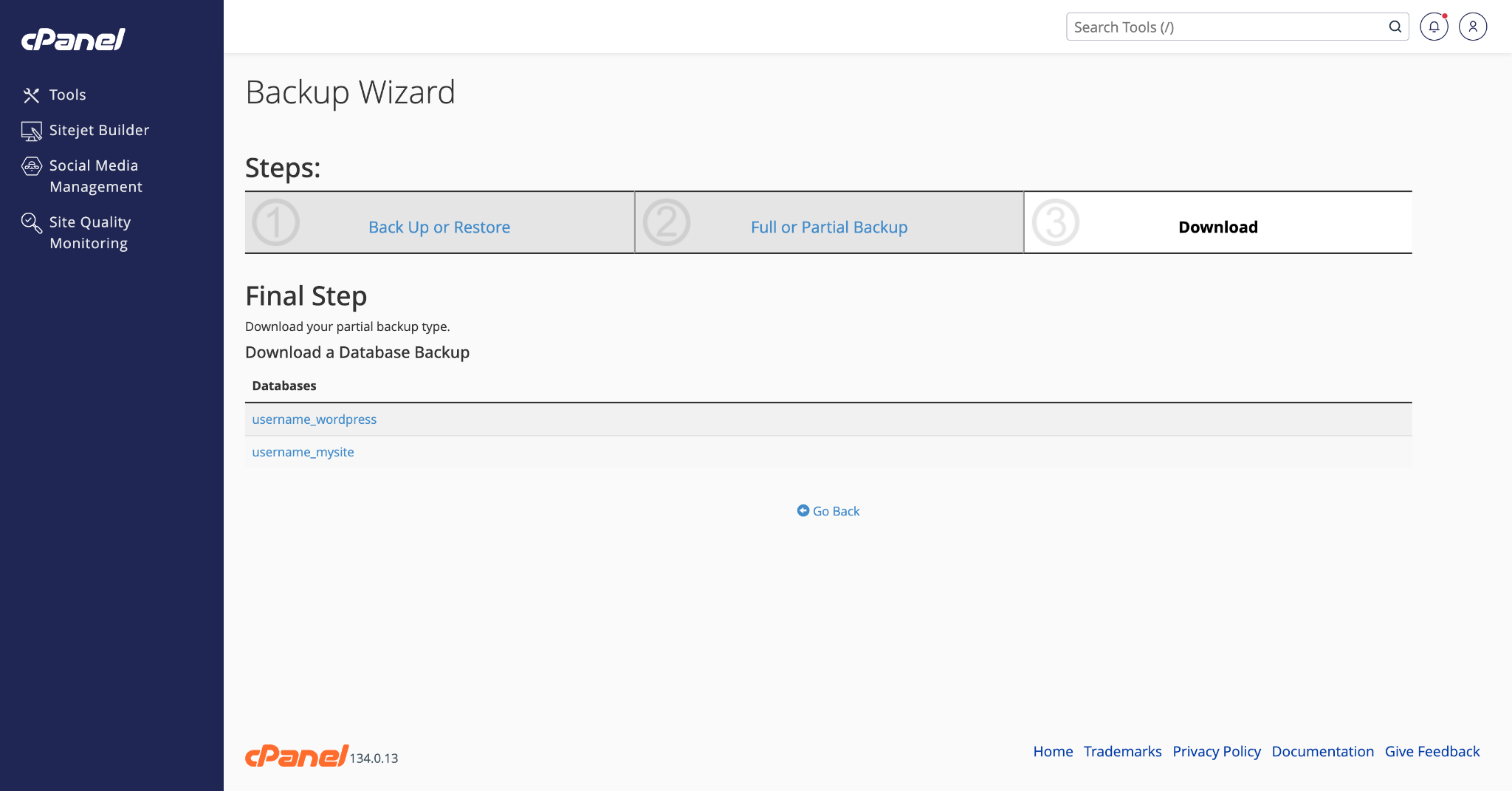
- Click Backup Wizard → Back Up → MySQL Databases.
- You will see a list of all databases on your account. Click the database name you want to download.
- A
.sql.gzcompressed SQL file will download to your computer.
To restore using the Backup Wizard, go to Backup Wizard → Restore → MySQL Database, upload the .sql.gz file, and click Upload.
Method 2: phpMyAdmin (more control)
phpMyAdmin gives you more options, you can export specific tables, choose the SQL format, and add custom options like drop statements.
- In cPanel, scroll to Databases and click phpMyAdmin.
- In the left panel, click the name of the database you want to back up.
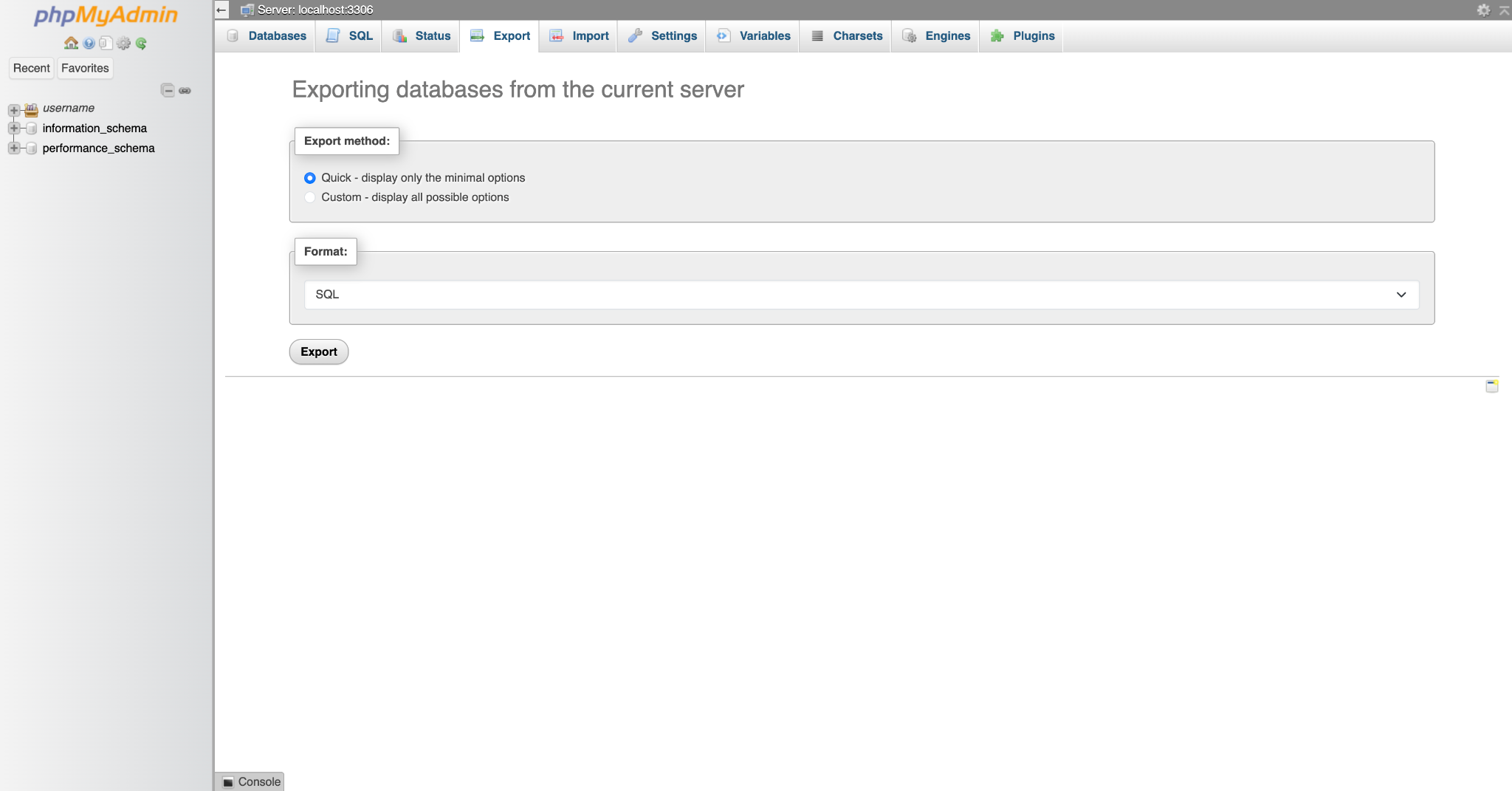
- Click the Export tab along the top.
- Leave the method as Quick and format as SQL, then click Export.
- A
.sqlfile will download to your computer.
For large databases: If your database is over 50MB, use the Custom export method in phpMyAdmin and tick Add DROP TABLE under Output options. This makes restoring cleaner by removing old tables before importing. Alternatively, use the cPanel Backup Wizard which handles compression automatically.
How to restore a database from a .sql file
- In phpMyAdmin, select the target database in the left panel (create a new empty one first if needed via cPanel → MySQL Databases).
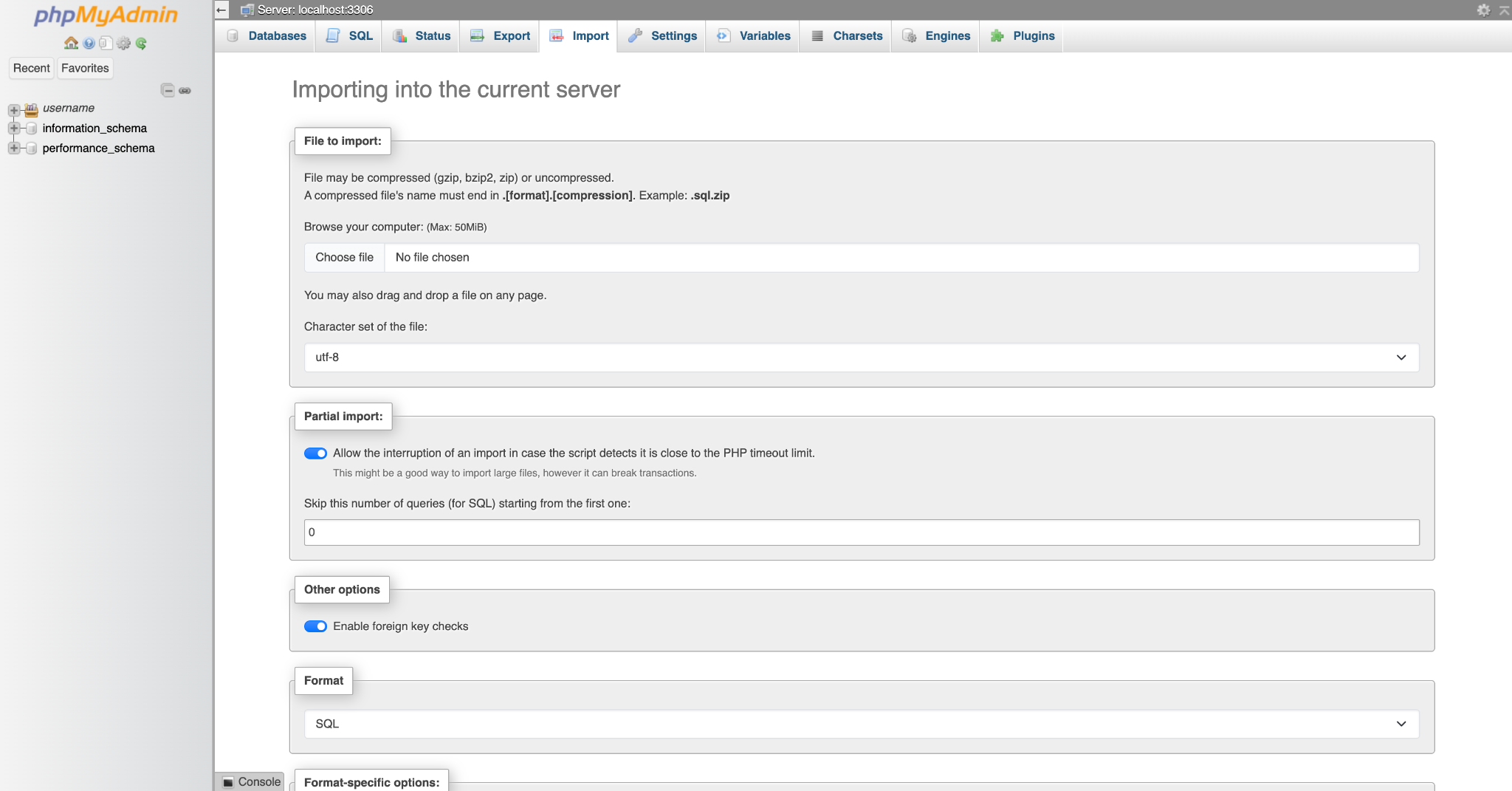
- Click the Import tab.
- Click Browse and select your
.sqlor.sql.gzbackup file. - Click Go. phpMyAdmin will import the data and display a success message when complete.